MBOX to PDF Converter
Browse an MBOX, choose a message range and save it in one PDF. Each message starts on a new page.
Drop your MBOX file here
One email. Ready to read, save, or share.
.mbox files up to 25 MB · No upload requiredOpening your email…
Choose a message to read it. Only the selected message is decoded.
Up to 25 messages per PDF. Each message starts on a new page; attachments download separately.
How to convert MBOX emails to PDF
Open an mboxrd or mboxo archive and select the escaping variant used by your email application. The range controls use the original message order, independent of the subject filter. Messages are decoded and rendered one at a time to bound browser memory.
- Open an MBOX and check the escaping variant.
- Choose the first and last message for the PDF.
- Download the range, or use the message preview to export a single email.
Archive conversion limits
An input must fit 25 MB and 500 messages. A single PDF contains at most 25 selected messages. Choose successive ranges for a larger archive. Each message keeps its own header block and starts on a new page.
PDF pages are raster images, so their text is not searchable. Attachments are not embedded; save them from the selected message. Very long individual messages can exceed image-export limits. If a range contains an unreadable message, no partial PDF is downloaded.
Example: two emails in one PDF
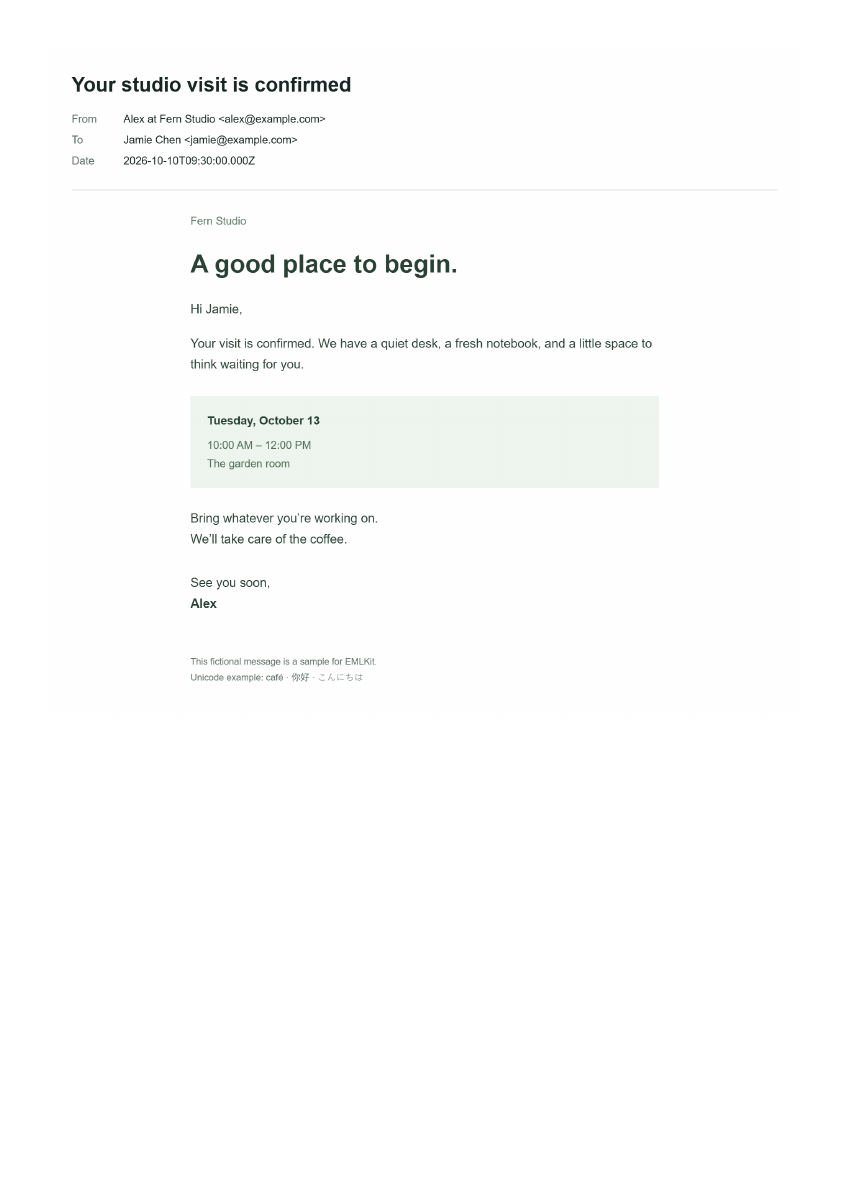
Try the fictional mailbox sample and select messages 1 through 2. The PDF contains both emails in archive order. Each email starts on a new page, but a long email may occupy several pages; the message count is not a page count.
Filtering the list to one subject does not change those range numbers. Before downloading, check the first and last message against the unfiltered archive. To export nonadjacent messages, choose separate ranges or save individual messages from their previews.
Recover from an incomplete range export
If an unreadable or oversized message stops the export, try smaller ranges to locate it. The tool does not download an incomplete PDF as if it contained the whole range. Canceling stops the current export; you can choose a smaller range and try again.
Keep MBOX or selected EML copies when you need searchable source text or original attachments. The PDF is a visual reading copy, with image-based pages and no embedded attachments. Check line wrapping and page breaks in the downloaded PDF before sharing it.
Use this page's Message list to choose an email and Download selected EML to save it. Open the Attachments tab to save its files, or open the EML in EML attachment extractor.
Understand the Archive escaping option
MBOX uses a line beginning with From and a date as a message separator. Body lines that could be confused with separators are protected with a leading >. The two supported variants restore those lines differently, so choose the variant used by the application that created the archive.
| Stored body line | mboxrd result | mboxo result |
|---|---|---|
| >From the studio | From the studio | From the studio |
| >>From an earlier reply | >From an earlier reply | >>From an earlier reply |
mboxrd removes one leading > from quoted From lines, including lines with multiple > characters. mboxo only restores lines beginning exactly >From. The default is mboxrd. Match the option to your export; it changes the decoded body and selected EML copy.
MBOX to PDF questions
Can I combine several emails in one PDF?
Yes. Choose a valid range within the displayed per-PDF limit. Messages follow their source order and begin on separate pages.
Does filtering change the exported range?
No. First and last message numbers refer to the complete archive. The filter only changes the browsing list.
Which MBOX variants work?
This converter supports mboxrd and mboxo with ctime-style message separators. It defaults to mboxrd. Archives containing Content-Length headers, including mboxcl and mboxcl2, are rejected; re-export them as mboxrd or mboxo.
What does Archive escaping mean?
MBOX protects body lines that begin with From by adding a leading >. mboxrd also quotes already-quoted lines. Choose the variant used by your exporting application so those lines are restored correctly.
Does my data leave my device?
Your selected files and pasted text are processed in your browser, without being uploaded to EMLKit. Remove the input or leave the page to clear the current workspace. Ordinary page requests still reach the site host. Read about file handling.